There are three ways to use the Signin app
1. The iPad Setup at Reception
The iPad at reception has the Signin app already open.
Users can scan their card or search for their name to sign in.
If the app asks for a badge number, leave it blank and tap continue.
If your name is not recognised, please visit the IT Workshop.
2. Using https://companion.signin.app/ through the Staff SharePoint Page
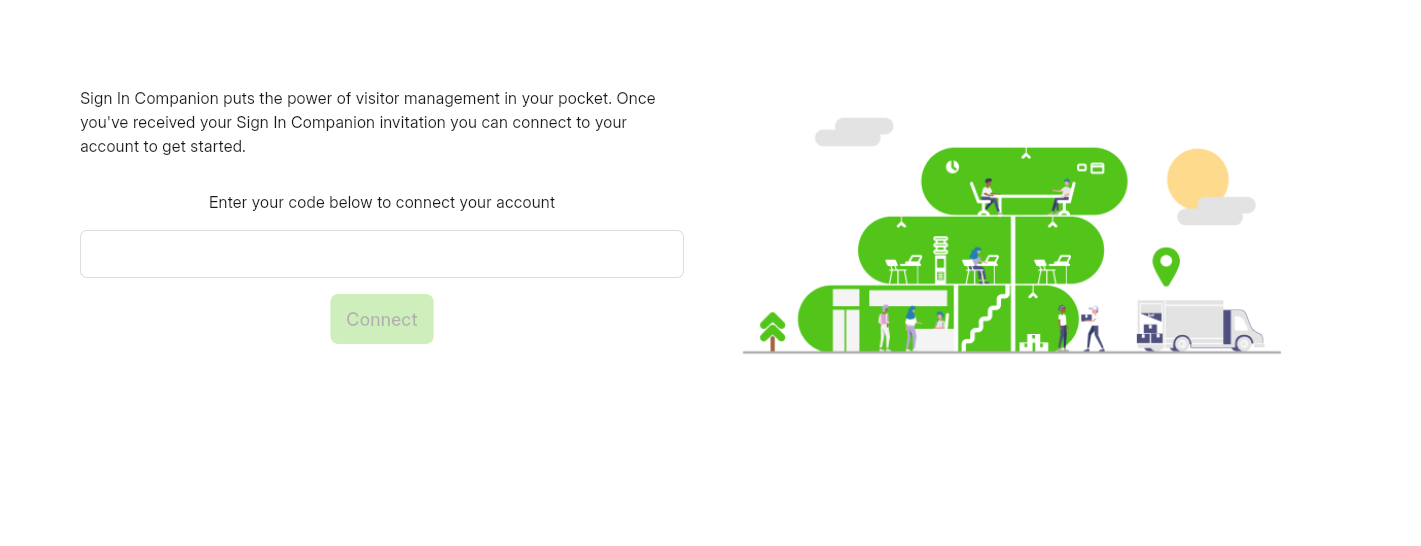
When you open the link, it will ask for a code.
IT will provide this code after you submit a ticket.
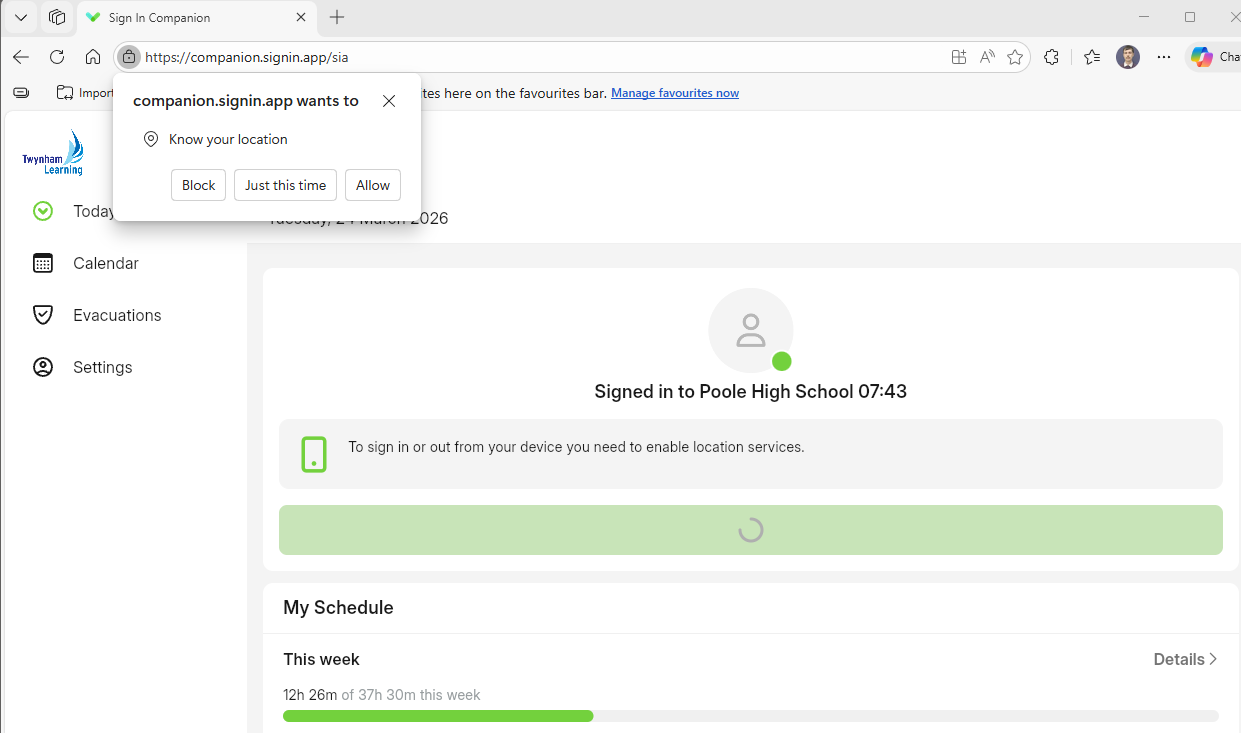
After entering the code, the app may request permission to enable location settings. Make sure you allow this.
Once completed, simply tap the Sign In button.
3. Using the Signin App on Your Phone
Go to the App Store (iPhone) or Google Play Store (Android) and search for “Signin App.”
Look for the app with this symbol: 
Once installed, open the app and follow the on‑screen instructions.
After opening the app for the first time, you will need a code.
Just like the web version, you’ll need to submit a ticket to IT to receive one.
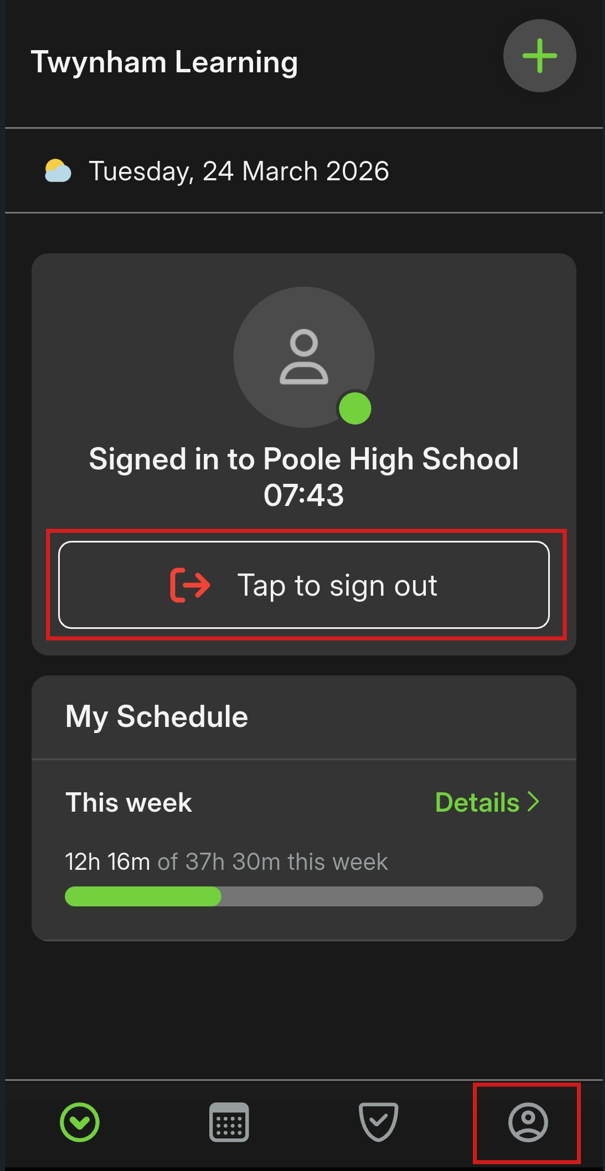
Once you’ve entered the code, you will see a screen with options to Sign In or Sign Out.
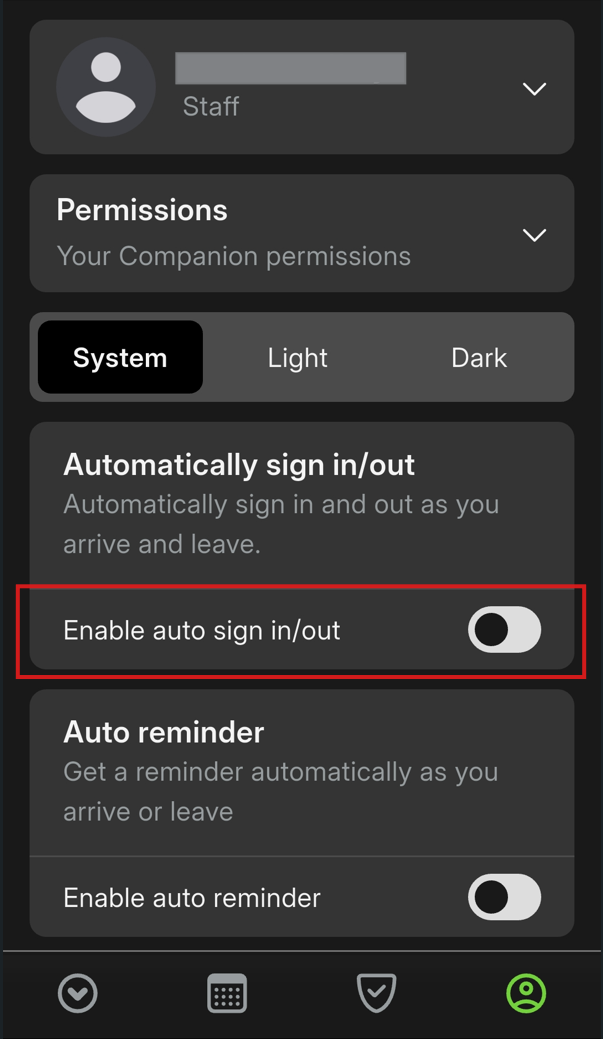
To enable automatic sign‑in, tap the icon in the bottom‑right corner, then select Enable auto sign in/out in the settings.
Was this article helpful?
That’s Great!
Thank you for your feedback
Sorry! We couldn't be helpful
Thank you for your feedback
Feedback sent
We appreciate your effort and will try to fix the article