If you’ve been granted permission to someone else's mailbox (e.g., a shared mailbox or a colleague’s mailbox), you can open it directly in Outlook Web using these steps:
Method 1: Open the Mailbox in a New Window
Open Outlook Web:
Go to https://outlook.office.com and sign in.Click your profile picture (top right corner).
Select “Open another mailbox…” from the menu.
Type the name or email address of the mailbox you want to open.
Select it when it appears in the list.
Click Open.
The mailbox will open in a new browser tab.
Method 2: Add It to Your Folder List (Permanent View)
In Outlook Web, right‑click Folders in the left sidebar.
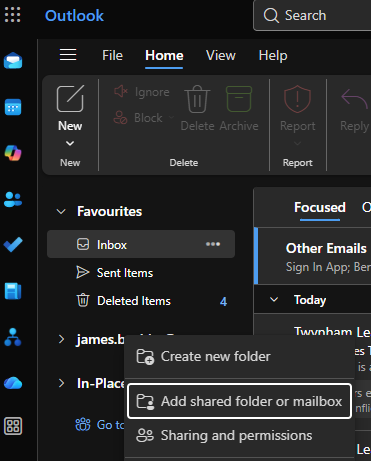
Select Add shared folder or mailbox.
Type the name or email address of the shared mailbox.
Select it from the results.
Click Add.
The mailbox will now appear in your folder list every time you open Outlook Web.
If You Don’t See the Mailbox
You may not have been granted permission yet. Contact your IT team to confirm access.
Was this article helpful?
That’s Great!
Thank you for your feedback
Sorry! We couldn't be helpful
Thank you for your feedback
Feedback sent
We appreciate your effort and will try to fix the article