First-Time Setup & Printing with uniFLOW Online
? Step 1: Open the uniFLOW Smart Client
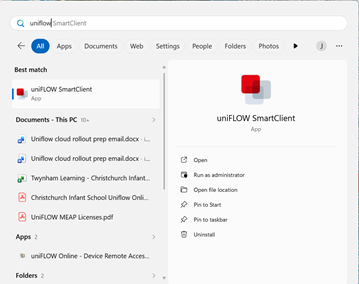
- Click the Start Menu
- Type “uniFLOW Smart Client”
- Select and open the application
? Step 2: Confirm It’s Running
- Look at the bottom-right corner of your screen (taskbar)
- You should see a new uniFLOW icon near the clock
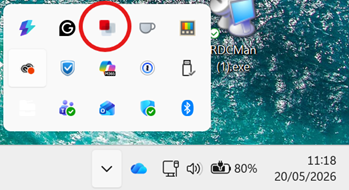
✅ This means the system is ready to use
? Step 3: Print Your Document
- When printing from any application (Word, Excel, PDF, etc.):
- Select Print
- Choose “Canon Secure Print” as your printer
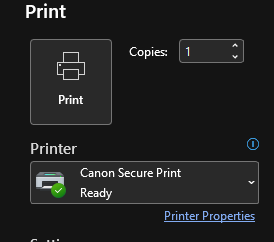
✅ Your document will now be securely held until you collect it
? Step 4: Go to the Printer
- At the printer/copier, scan your ID badge to log in
- (Scanner location may vary depending on the device)
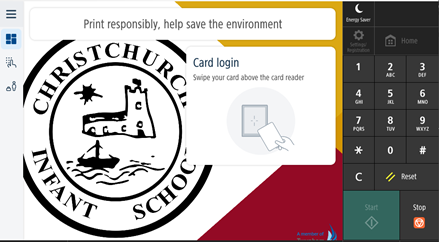
- (Scanner location may vary depending on the device)
? Step 5: Release Your Print Jobs
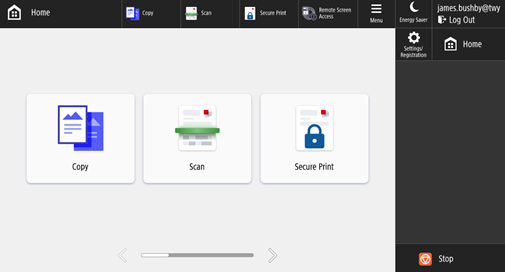
- On the screen, tap “Secure Print”
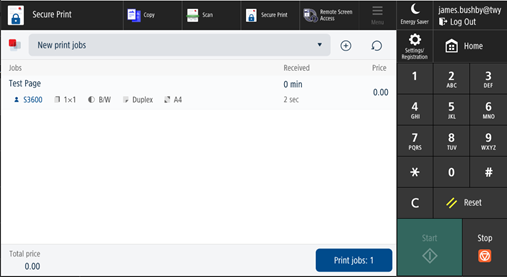
- You’ll see a list of your documents
- Select the documents you want
- Tap “Print Jobs”
? Step 6: Log Out
- Wait until printing finishes (red progress bar disappears)
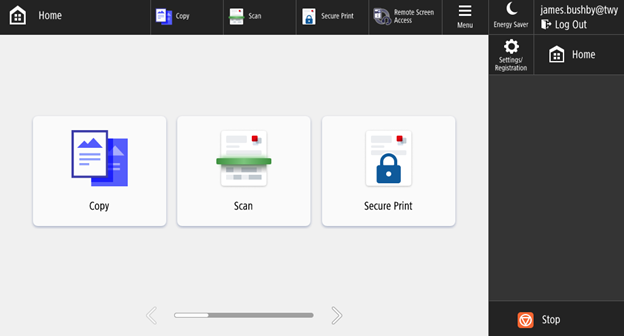
- Tap Logout before leaving the printer
Was this article helpful?
That’s Great!
Thank you for your feedback
Sorry! We couldn't be helpful
Thank you for your feedback
Feedback sent
We appreciate your effort and will try to fix the article