Step 1: Navigate to the SharePoint Library
Open your browser and go to your organization’s SharePoint site. Select the document library you want to sync.

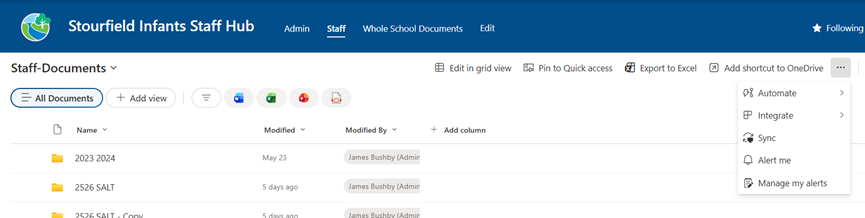
Step 2: Click the “Sync” Button
In the library toolbar, click Sync (may need to click the …). If prompted, allow the site to open OneDrive.
Step 3: Confirm Sync in OneDrive
Click on the blue cloud in the task bar and click setting under the cog,
go to account and the document library will be listed here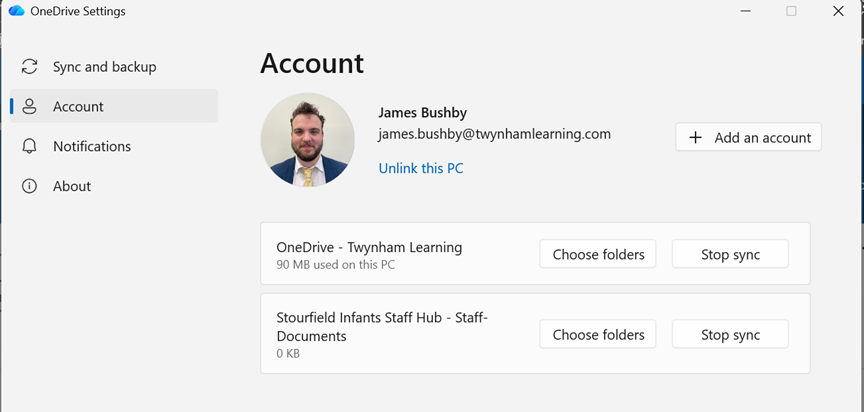
Step 4: Access Synced Files
Your files will appear in File Explorer under Twynham Learning. As a item for each document library sync’d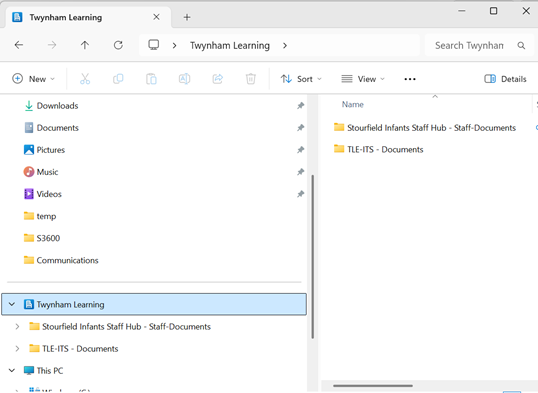
Was this article helpful?
That’s Great!
Thank you for your feedback
Sorry! We couldn't be helpful
Thank you for your feedback
Feedback sent
We appreciate your effort and will try to fix the article